


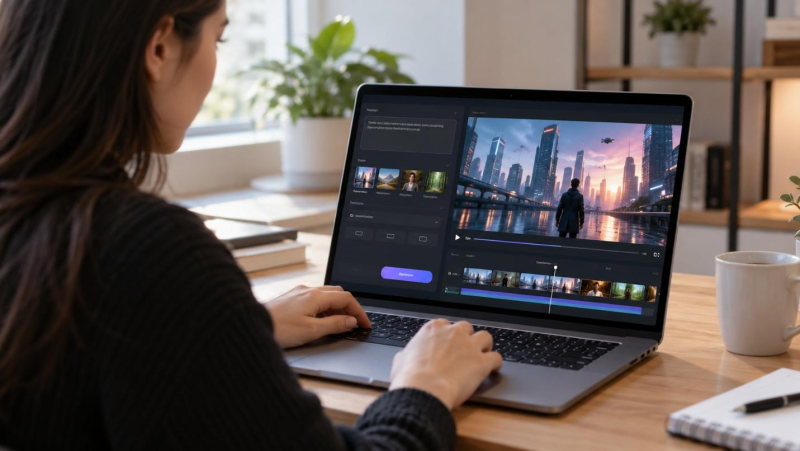
MiniMax, a Shanghai-based company, runs the Hailuo AI video generator as an online tool and mobile app. Each generation turns a text prompt, an image, or a set of reference files into a clip of up to 15 seconds.
This guide walks through the Hailuo workflow, including the ways to start a clip and the trade-offs between MiniMax H3 and older models.
It also covers useful tips for getting better videos from each generation without making things complicated.
Part 1. Tips for Creating Videos with Hailuo AI Video Generator
A single clear scene per prompt gives the Hailuo AI text-to-video generator the least room for error. Plain wording, named camera moves, and a reference image do most of the steering from there. For better results, the following tips explain each approach in detail:
- Write Prompts Like Shot Descriptions
With a 15-second ceiling on every Hailuo clip, a prompt has room for one moment, not a whole story. The subject goes first in the prompt, followed by the action, setting, camera, and lighting. A prompt such as “a barista pours latte art at a sunny counter, slow push-in, soft morning light” covers all five in that order.
- Direct the Camera with Film Terms
Hailuo reads standard film vocabulary, so camera moves go straight into the prompt as words such as dolly, pan, tilt, and tracking shot. A few extra details help the model follow the movement:
- Add a Speed Word: A bare “dolly-in” can lurch on screen, and adding a pace word, as in “slow dolly-in” or “gentle pan left,” steadies the motion.
- Set the Camera Height: Naming eye-level, overhead, or low angle settles the viewpoint before any camera motion begins.
- Limit the Moves: Limit camera movements to those needed for the shot. Combining several complex movements can make the intended framing harder to control.
- Start from an Image for More Control
Starting from an image gives an “AI video generator Hailuo” project more control over the look, since the picture becomes the first frame. An end frame pins down the final image, which matters for a transition like a closed door swinging open. With both frames set, the prompt only has to cover the movement in between.
- Keep Characters Consistent with References
MiniMax H3 accepts up to 9 reference images, 3 video clips, and 3 audio clips in its reference mode. Reusing the same character reference photos across shots helps maintain recognizable facial features and clothing, although some visual differences can still appear. Filling one of the 3 audio slots with a voice sample keeps a narrator sounding the same in each generation.
- Fix Common Problems with Small Prompt Changes
Failed generations tend to show the same handful of faults again and again. Rerunning an identical request rarely fixes them, and a small edit to the prompt or the inputs usually does. The faults that come up most often each have a matching fix:
| Problem | What to Change |
| Warped Hands Or Faces | Use a closer framing or add a reference image |
| Camera Ignores The Move | Name one movement and add a speed word |
| Character Changes Between Clips | Reuse the same reference photos in every shot |
| Stiff Or Slow-Motion Movement | Describe the action with a specific verb and a pace |
| Garbled On-Screen Text | Leave text out and add titles in an editor |
- Test Short Drafts Before the Final Render
A short test at 768p reveals whether an idea holds up, well before a 15-second 2K render takes its share of credits. This matters most on a “Hailuo AI video generator free” allowance, where every attempt draws from a small pool of credits. Once the motion and framing look right, you can rerun the same prompt at full settings.
- Build Longer Stories from Several Clips
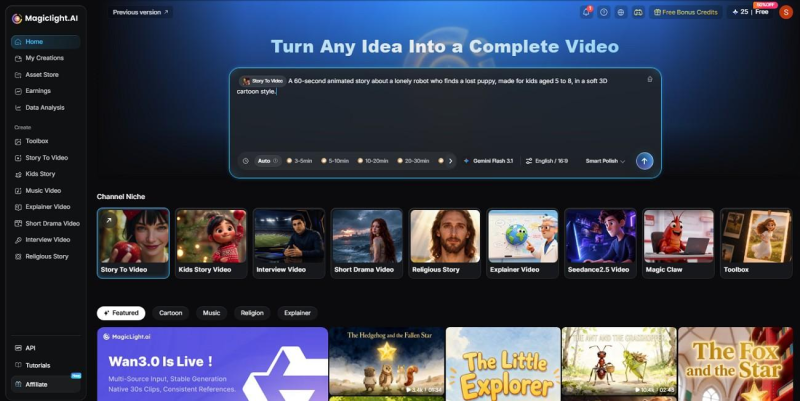
Hailuo works best for short scenes, so longer stories usually need several clips joined together. For creators who want to manage a multi-scene project in one place, MagicLight AI provides a more structured story workflow and also includes Hailuo models such as Hailuo 2.3 Fast.
Part 2. Getting Started with Hailuo AI Video Generation
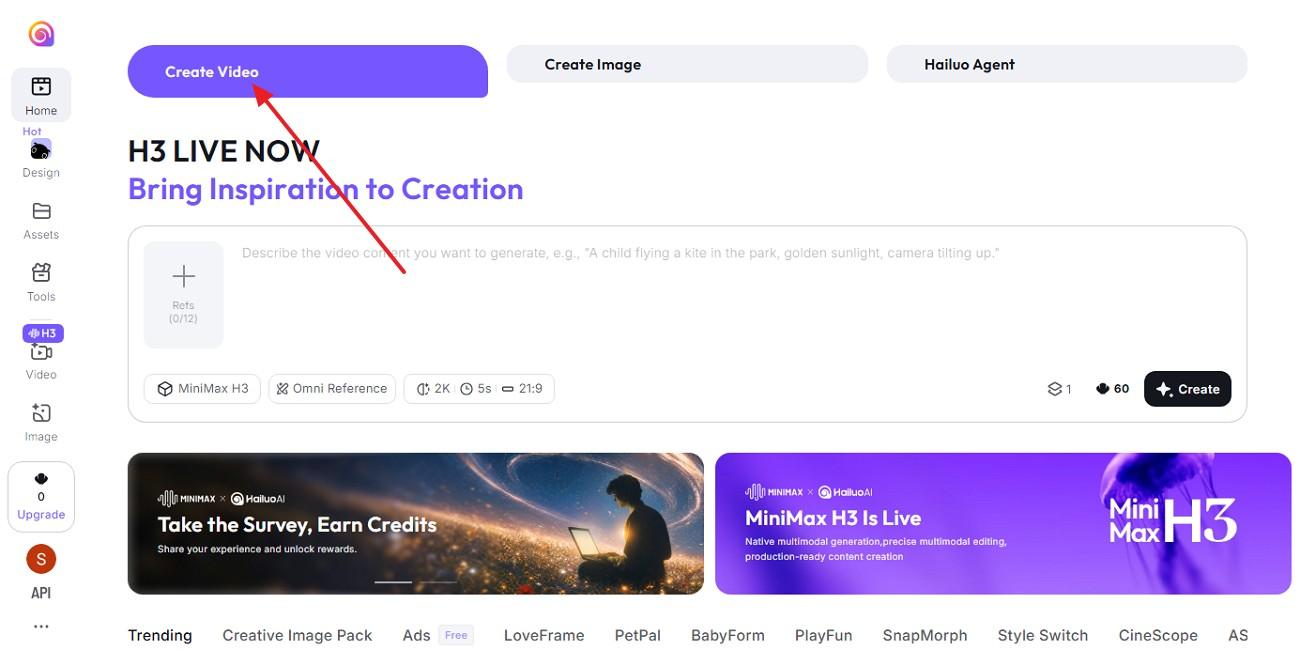
Every clip made with the Hailuo AI video generator passes through the same 4 stages, starting at the Create Video tab. The web version at hailuoai.video and the mobile app follow a nearly identical flow, which is as follows:
Step 1. Sign in with your account across Hailuo AI, and go to the Create Video tab at the top of the home screen.
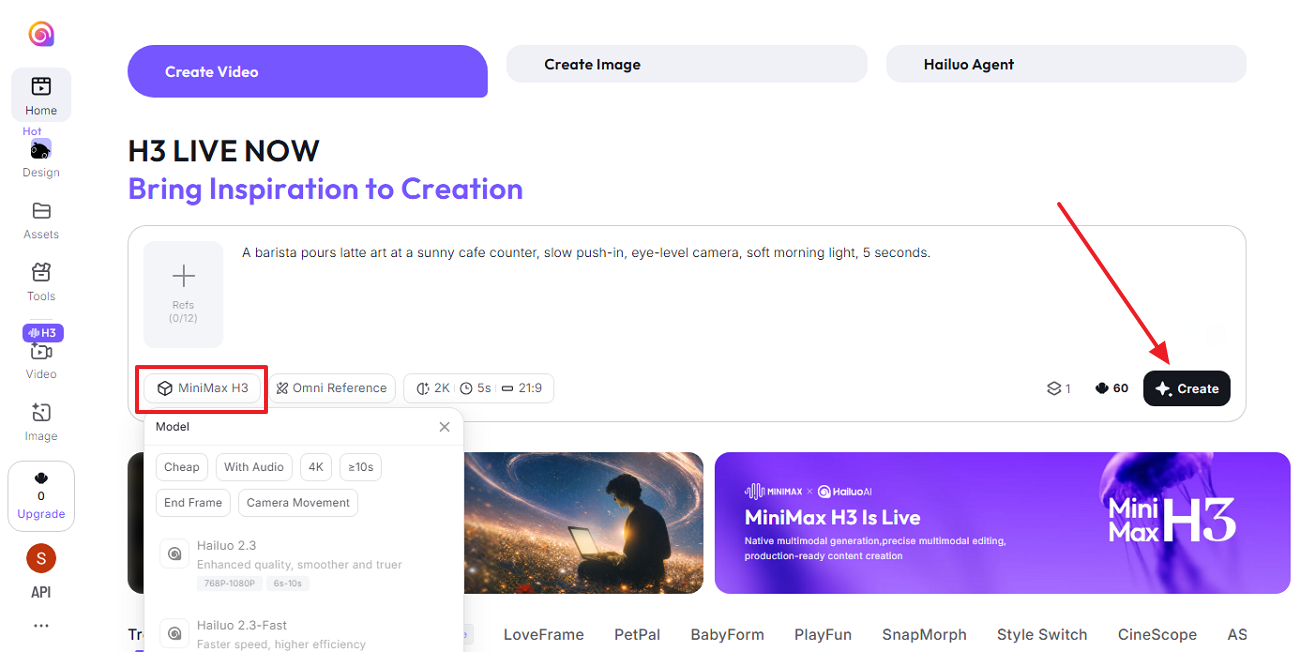
Step 2. Add the shot description into the prompt box, following the subject-first order as discussed in Part 1. The Refs button holds up to 12 reference files, and Omni Reference mixes images, video clips, and audio in one request.
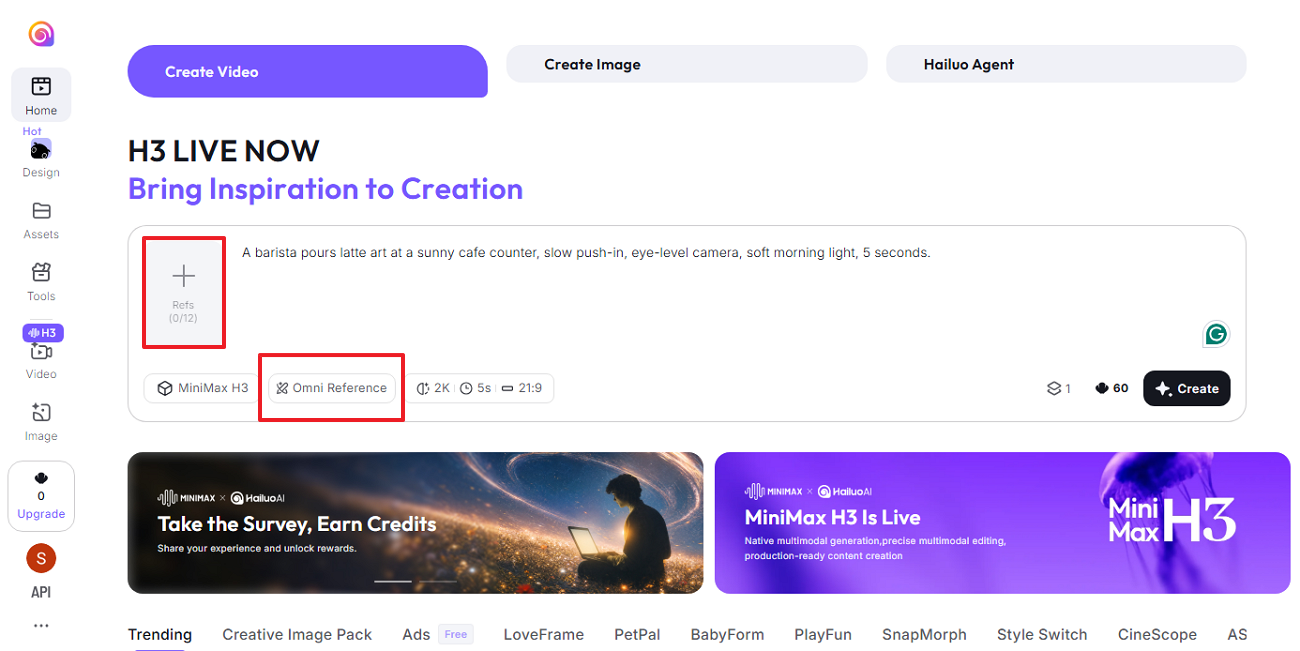
Step 3. The video composer opens on MiniMax H3 by default, which is the model with native sound. Hailuo 2.3 or Hailuo 02 costs fewer credits, though Hailuo 2.3 stops at 10 seconds and adds no native audio.
The chip after Omni Reference sets resolution, length, and ratio, which default to 2K, 5s, and 21:9. Pressing Create starts the job, which costs 60 credits for the default H3 clip.
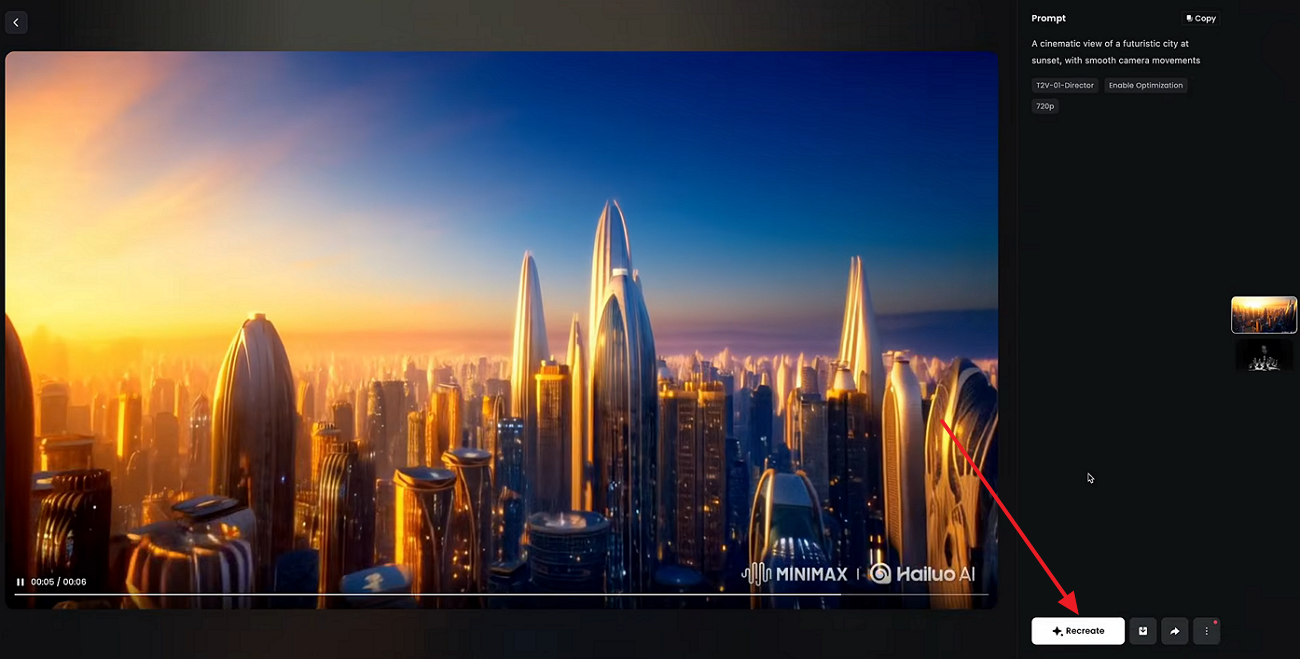
Step 4. If the motion or framing misses, Recreate in the result panel runs the same prompt again for another take. H3 also accepts a written edit, such as a new jacket color or a different background, applied to the existing clip.
Conclusion
The Hailuo AI video generator turns text, images, and references into short clips, and MiniMax H3 adds native sound.
Results depend mostly on shot-style prompts, a model matched to each clip, and low-cost test runs before the final render. For multi-scene stories, Hailuo models are also available inside MagicLight AI.
FAQs About Hailuo AI Video Generator
1. Does Hailuo AI offer a free video generator?
New Hailuo AI accounts receive free credits for trying both text and image prompts before paying. Free Hailuo AI downloads include a watermark, while eligible paid plans offer watermark-free downloads and commercial usage rights under the platform’s terms.
2. When might another AI video tool be a better fit than Hailuo AI?
Another tool may work better for longer stories with recurring characters and narration. MagicLight AI handles projects like that, and its Long Video Generator supports stories running up to 50 minutes on a paid plan.
3. Which Hailuo AI model should I use?
Use MiniMax H3 for clips with sound, references, or longer motion. Hailuo 2.3 supports 6-second clips at up to 1080p or 10-second clips at 768p, making it suitable for shorter, motion-focused videos. For cheaper drafts, Hailuo 2.3 Fast and Hailuo 02 cost fewer credits per attempt.
4. What types of creative projects is Hailuo AI best suited for?
Hailuo fits short visual pieces, such as social clips, product teasers, music video shots, and animated concept art. Longer narrated stories usually need a separate editor or a story-based platform, since a single Hailuo generation tops out at 15 seconds.