


Every Windows user eventually faces the same frustration: a program that won’t fully uninstall, leftover registry entries that slow the system down, or a list of apps so long that finding the right one to remove feels like a chore.
Windows ships with its own “Apps & Features” panel for this job, and for years it’s been the default option simply because it’s already there. But built-in doesn’t always mean better.
IObit Uninstaller has positioned itself as a dedicated alternative, promising deeper cleanup, more visibility into what’s installed, and tools for the stubborn programs Windows simply can’t touch. This review compares the two head-to-head, using IObit Uninstaller 15 Free as the test case.
The Core Job: Uninstalling Programs
Windows’ built-in uninstaller does one thing: it lists installed programs and lets you remove them one at a time, using whatever uninstall routine the original developer built in. It’s functional, but minimal no batch removal, no leftover detection, no extra context about what you’re deleting.
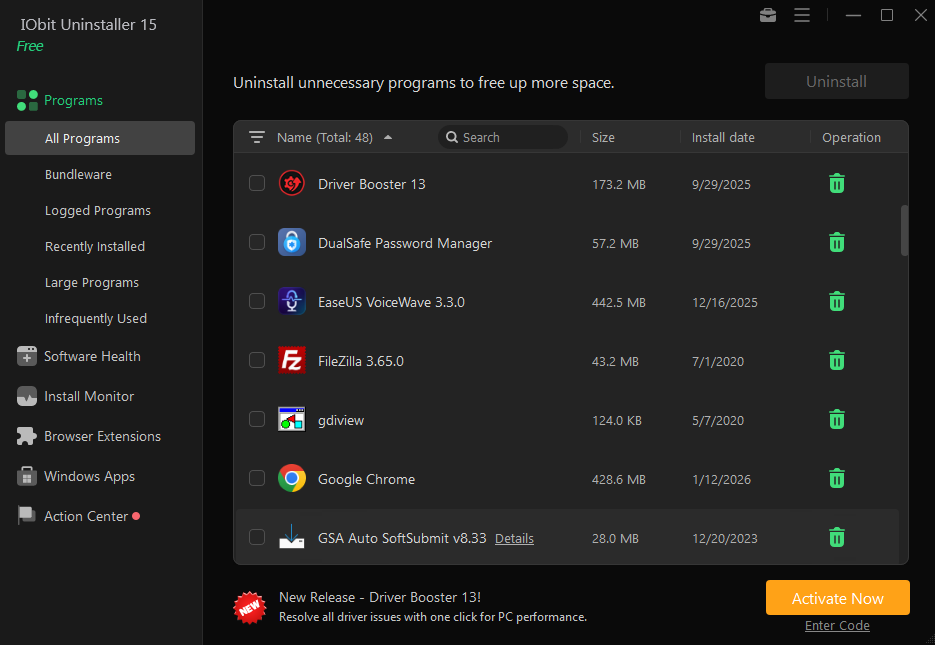
IObit Uninstaller approaches the same task with noticeably more information up front. The main “All Programs” view shows every installed application with its size, install date, and a one-click trash icon, all sortable and searchable in real time.
This alone is a meaningful upgrade. Instead of clicking through a slow Windows dialog one program at a time, you can scan the entire list, sort by size to find space hogs, or search by name.
The sidebar also pre-filters programs into useful categories Bundleware, Logged Programs, Recently Installed, Large Programs, and Infrequently Used which Windows doesn’t offer at all.
If you’re trying to free up disk space, jumping straight to “Large Programs” saves real time compared to manually sorting through Windows’ flat list.
Batch Uninstalling and Real-Time Progress

One of the clearest practical differences shows up when removing multiple programs at once. Windows requires you to uninstall apps one by one, waiting for each wizard to close before starting the next.
IObit Uninstaller lets you select several programs and process them together, with a live progress view showing exactly what’s happening.
In this example, three programs — a browser, a media player, and a messaging app — are being removed in a single batch, with individual progress indicators for each.
For anyone doing a periodic cleanup of unused software, this kind of batch processing is a genuine time-saver over the built-in tool’s one-at-a-time approach.
What Happens After Uninstall: Leftover Detection?
This is where the gap between the two tools becomes most obvious. When Windows uninstalls a program, it considers the job done once the main application files are gone. Registry keys, cached files, and scheduled tasks tied to that program are frequently left behind, accumulating clutter over time.
IObit Uninstaller scans for exactly this kind of residue immediately after a batch uninstall completes.
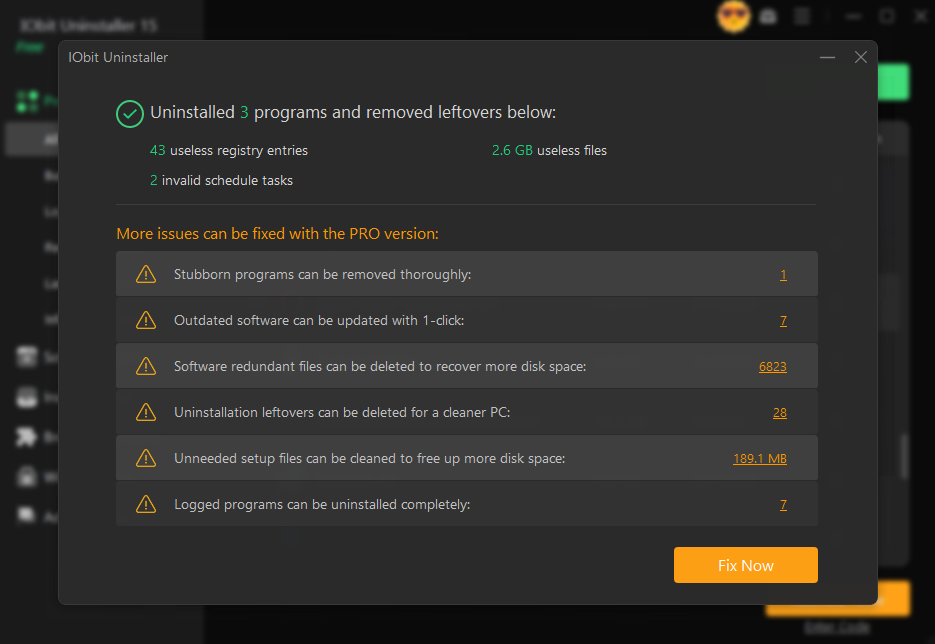
In this scan, this uninstaller for Windows identified 43 useless registry entries, 2.6 GB of useless files, and 2 invalid scheduled tasks — all tied to the three programs just removed, and all things the Windows uninstaller would have ignored.
This single screen demonstrates the practical value proposition of a third-party uninstaller: it’s not just about removing the program, it’s about removing everything the program left behind.
The free version does flag additional cleanup opportunities (stubborn program remnants, redundant files, more leftovers) as PRO features, which is worth knowing going in — the free tier handles the core leftover cleanup, while deeper redundant-file removal sits behind a paid upgrade.
Filtering by Disk Drive
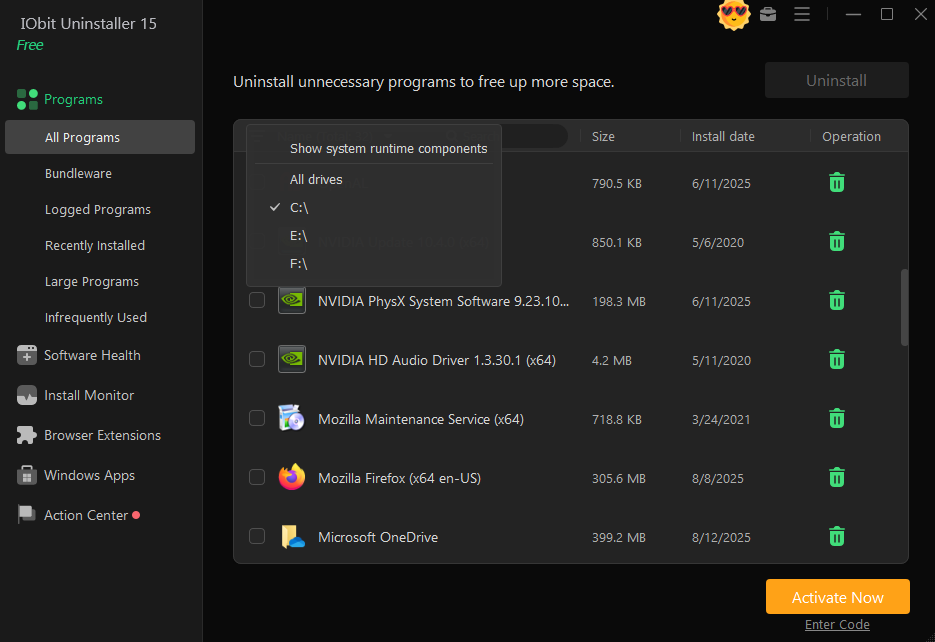
Multi-drive setups are increasingly common, especially with NVMe boot drives paired with larger secondary storage. Windows’ Apps & Features list doesn’t let you filter by drive at all — every program is lumped together regardless of where it’s installed.
IObit Uninstaller adds a drive filter directly into the program list, letting you isolate software installed on a specific volume.
This is particularly useful if you’re trying to free up space on a specific drive rather than just reducing clutter generally — for example, identifying everything installed on a nearly-full C: drive without wading through programs that live elsewhere.
Proactive Software Health Monitoring
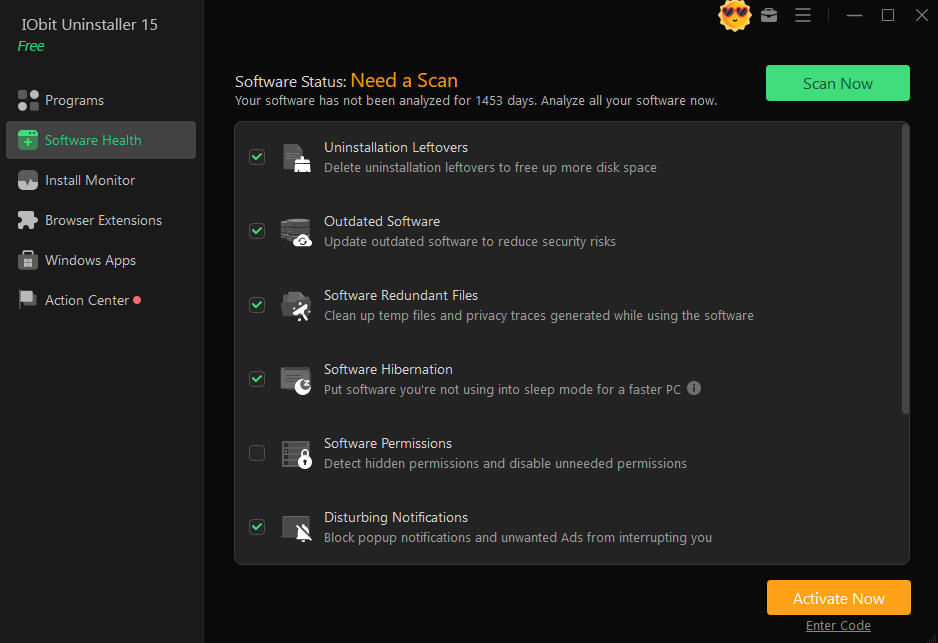
Built-in Windows tools are entirely reactive — they only act when you manually open them and remove something.
IObit Uninstaller’s Software Health module takes a more proactive stance, scanning the system for several categories of issues at once: uninstallation leftovers, outdated software, redundant files, software hibernation candidates, permission issues, and disturbing notifications.
None of this exists in the native Windows toolset. Windows will tell you an app needs an update only if the app itself checks in with its own update server; it has no centralized view of software health across every installed program.
Bundling outdated-software detection with cleanup and notification control in one panel is a meaningful convenience, even though several of these checks (like redundant file cleanup) push toward the paid tier in the free version.
Install Monitor: Solving a Problem Windows Doesn’t Even Acknowledge
Perhaps the most distinctive feature in IObit Uninstaller — and one with no Windows equivalent whatsoever — is Install Monitor. This tool watches what happens during a program’s installation, logging every registry change and file write in real time.
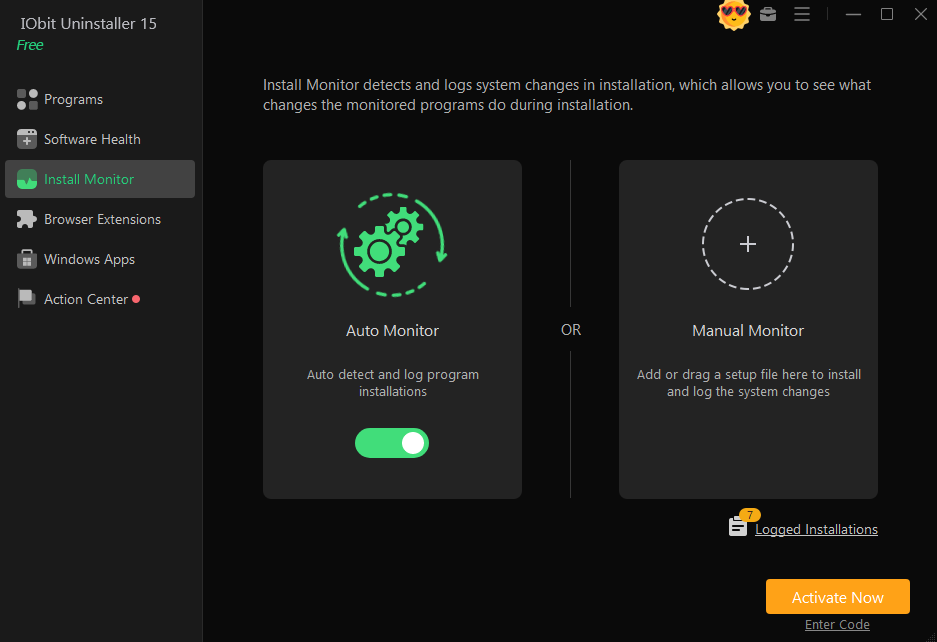
The value here is forward-looking rather than reactive: by recording exactly what a program does when it installs, the tool can later perform a much more complete uninstall, because it knows precisely what to reverse.
Windows has no comparable mechanism — its uninstaller relies entirely on whatever uninstall script the developer chose to write, for better or worse.
Browser Extensions and Windows Apps: Centralized Control
Windows treats browser extensions and pre-installed Windows Store apps as entirely separate ecosystems, each requiring you to dig through different settings menus — one inside each individual browser, another inside the Windows Settings app.
IObit Uninstaller consolidates both into the same interface used for desktop programs. The Browser Extensions panel scans across Internet Explorer, Chrome, Firefox, Opera, and Edge simultaneously, flagging trusted extensions and showing user ratings.
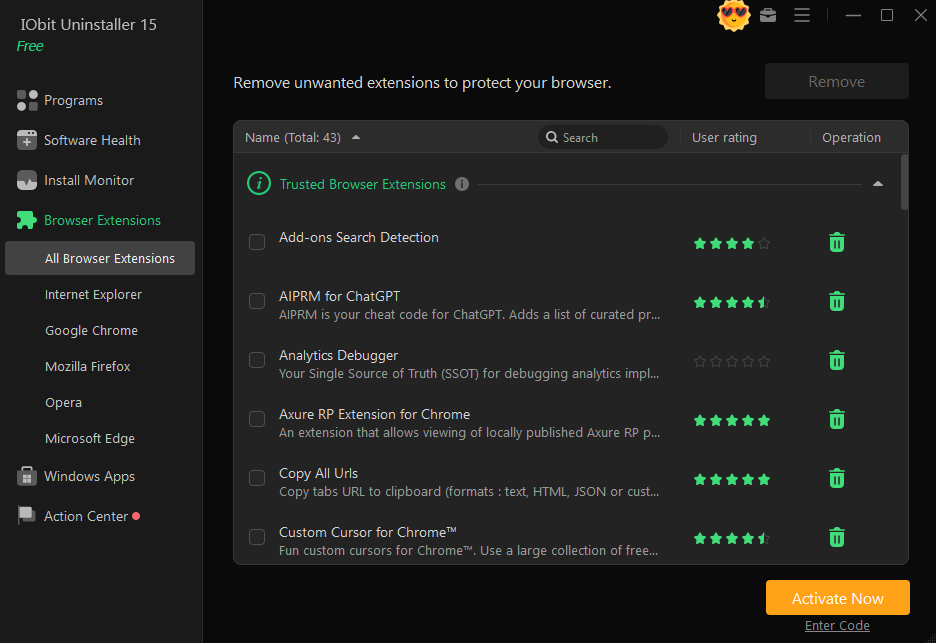
Similarly, the Windows Apps panel lists built-in and Store-installed apps — including ones Windows normally makes difficult to remove, like Cortana or Copilot — alongside their size and user ratings.
This consolidation is a genuine usability win. Rather than remembering which settings panel handles which type of software, everything funnels through one consistent interface.
Handling the Programs Windows Can’t Remove
This is arguably IObit Uninstaller‘s strongest differentiator. Some programs leave behind broken or missing uninstall registry entries, making them invisible to Windows’ Apps & Features panel entirely — they simply can’t be removed through normal means.
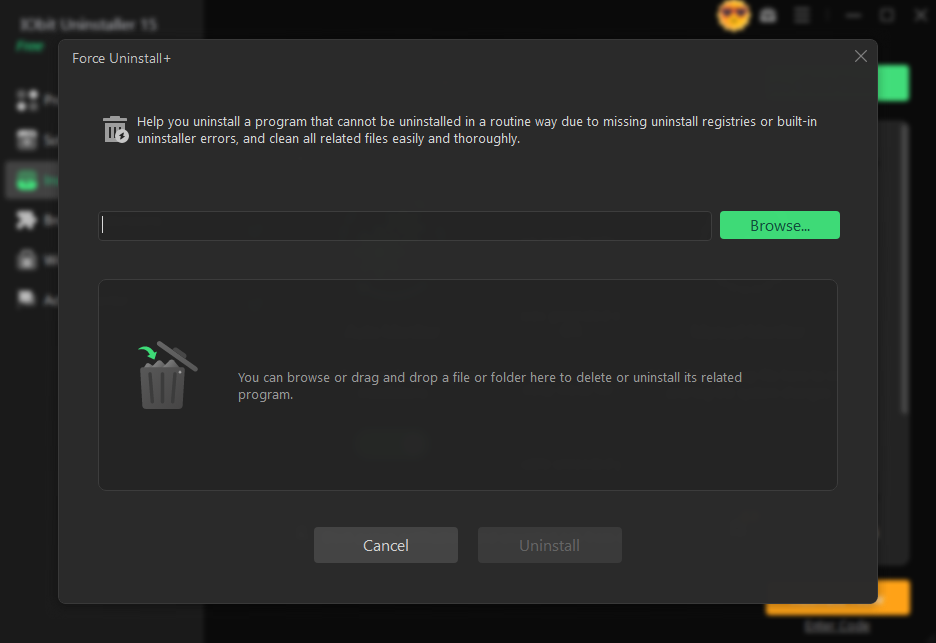
Force Uninstall+ addresses this directly, letting you point at a leftover file or folder and force its removal along with associated traces.
The Stubborn Program Remover takes a database-driven approach instead, cross-referencing installed software against a list of over 4,000 known stubborn programs.
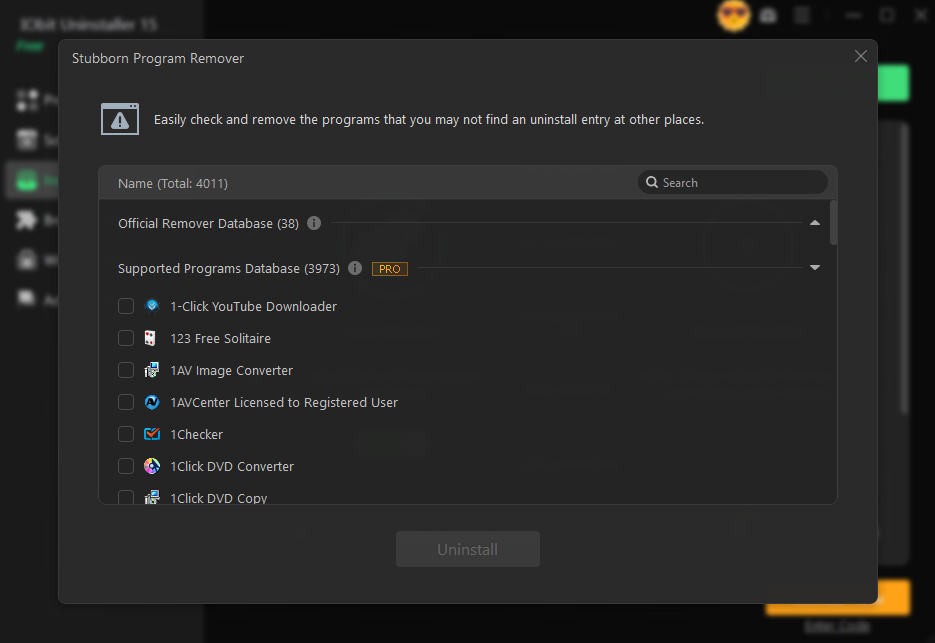
Windows offers no equivalent for either scenario. If a program’s uninstaller is broken, the built-in tool simply leaves it there IObit Uninstaller’s whole value proposition centers on these edge cases.
File Shredder: Secure Deletion
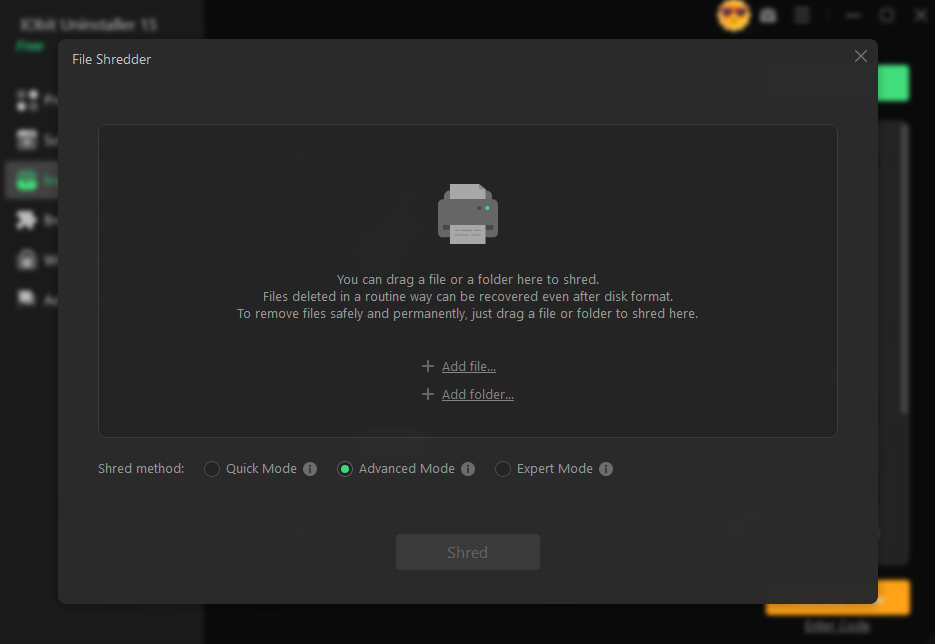
Lastly, IObit Uninstaller includes a File Shredder for permanently deleting sensitive files beyond standard recovery — something Windows’ Recycle Bin and Shift+Delete cannot guarantee, since “deleted” files often remain recoverable until overwritten.
With Quick, Advanced, and Expert shredding modes, this tool fills a gap Windows doesn’t address at all natively.
The Action Center: A Double-Edged Sword
Not every part of the experience is a clear improvement. The Action Center panel, intended as a hub for recommended actions, doubles as a promotional space for other IObit products.
This is a fair point of comparison in IObit Uninstaller’s favor of the built-in tool: Windows’ Apps & Features panel doesn’t try to upsell you on anything.
Free third-party software frequently monetizes through cross-promotion, and that’s the trade-off here. It doesn’t compromise the uninstaller’s core functionality, but it’s worth being aware of before installing.
The Verdict
Built-in Windows tools remain adequate for the simplest case: removing a single, well-behaved program with a clean uninstaller.
But the moment leftovers, stubborn programs, multiple browsers, or proactive maintenance enter the picture, the native experience falls short.
IObit Uninstaller fills nearly every one of those gaps batch processing, leftover scanning, drive filtering, browser extension management, and tools specifically built for programs Windows can’t touch.
The trade-off is the free version’s periodic nudges toward PRO features and bundled product promotions, which is a reasonable cost for software offered at no charge.
For anyone who uninstalls software more than occasionally, a dedicated uninstaller for Windows like this one earns its place over relying on the OS alone.